

How To Uninstall Deep Freeze In Windows 10
How to Remove Deep Freeze Without Password on Windows 10/8.i/8/7
Some people have reckoner security thing seriously. These are the kind of people who would install Deep Freeze to protect their computer. The convenience of the application is that it will restore the computer to the original pre-prepare configuration upon reboot. So whatsoever change that happens between reboots, including virus and malware infections, can exist eliminated easily.
The problem is, removing the application when you don't need it anymore is a existent pain in the cervix. You lot tin't merely uninstall information technology. The trouble is multiplied when you forgot the password that protects the app.
This measurement is understandable as security apps' job is to brand it hard for anyone to compromise the figurer. But if you have to remove Deep Freeze, here are ways to do that.
Part 1: How to Uninstall without Password Deep Freeze
The real problem comes when you demand to uninstall Deep Freeze without knowing or forgetting the password considering you are just forgetful or maybe you inherited the Deep-Freeze-installed computer from someone else. It's still possible to uninstall the application, but you lot need to jump through more hoops to do so.
The easiest mode to get rid of Deep Freeze without a password is to format the hard drive where the application is installed and clean-install your Windows. But this method volition also wipe every other data on the drive clean.
If you don't want to take such extreme measure and you notwithstanding want to keep the other information, you can try this following method.
First, restart the computer and enter the BIOS setup environment. Y'all tin can exercise then by pressing F2, F10, or DEL push during restarting. At that place are differences between computers on how to enter BIOS, but it's usually written down on the screen at the beginning of restart process.
On the BIOS screen, change the reckoner date to several years ahead or behind the current appointment. This will make Deep Freeze think that the machine is not running anymore.
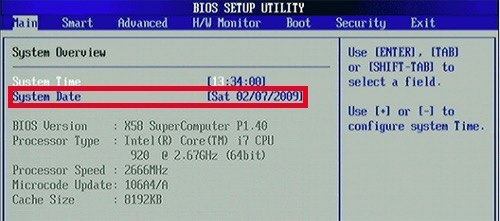
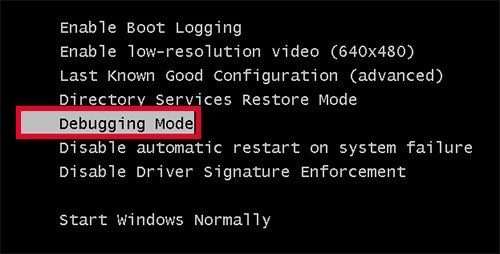
And then salvage the BIOS settings and restart the computer. During this restart, enter the Debugging Mode. The shortcut key should be rapid F8 keystrokes. But once again, please consult the screen instruction on how to practise it.
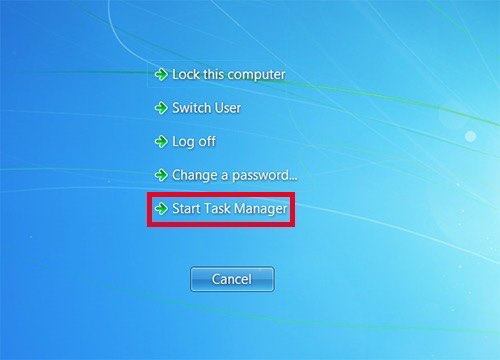
When the Windows logo appears, press Ctrl + Alt + Del to open up Job Manager.
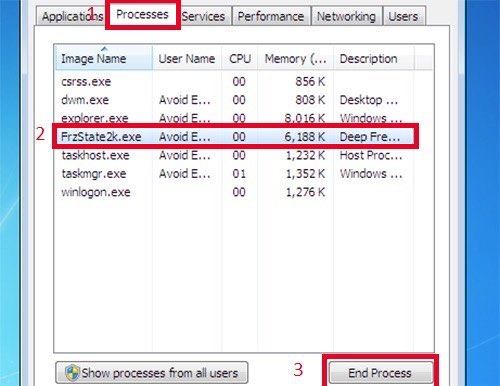
On the Task Manager, open Processes tab and find FrzState2K.exe. Select that process and click the Terminate Process button.
With the application inactive, you could go and delete the folder where Deep Freeze is located. Try either of these locations: C:\Plan Files\Faronics\ or C:\Program Files(x86)\Faronics.
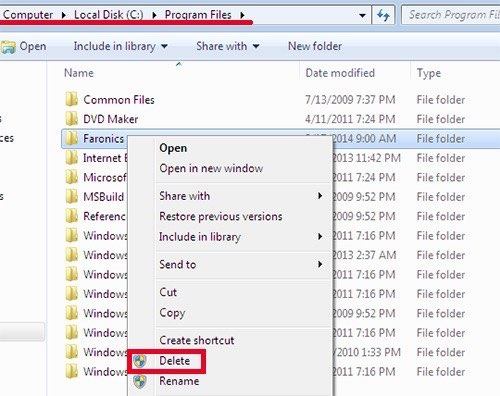
The terminal step is to delete the saved registry of Deep Freeze. You lot can apply regedit to practice it. Open Start - Run, blazon in regedit and hitting Enter.
Go to HKEY_LOCAL_MACHINE\SOFTWARE\ then discover and delete the entire Farconis folder.
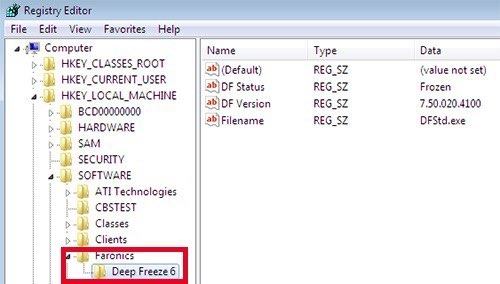
Restart your computer to complete the whole procedure, and you are free from Deep Freeze.
Office two: How to Uninstall Deep Freeze with Password
Now let look at the method of doing that when you do have the password. Since y'all can't uninstall Deep Freeze when information technology'due south active, you must disable it commencement.
First, hover your mouse to the Organization Tray on the lower right corner of your calculator screen and printing theShift button while double clicking on the Deep Freeze icon. The application window will appear, and it will inquire for your countersign.
Fill in your password and click OK (or hitting Enter button).
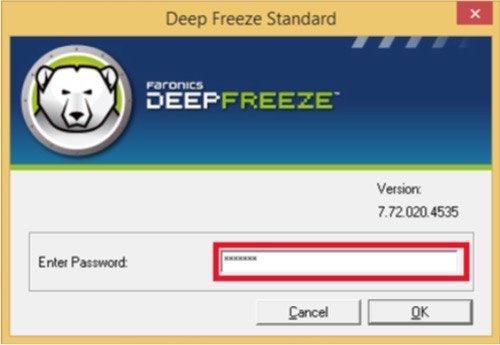
Then you will make it at Deep Freeze's Preferences interface. Choose Boot Thawed inside the Status on Adjacent Boot pane, then click Apply and Reboot.
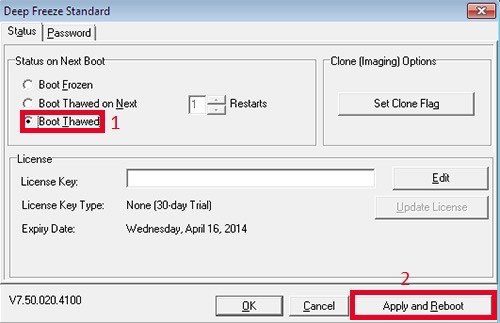
Your calculator will exist rebooted, and you volition encounter the" Ten " sign on the Deep Freeze icon in the System Tray. That is the indication that the awarding is currently disabled and you can safely uninstall information technology.
Open the installation file chosen DFStd.exe. You should accept this file from when your starting time download the app. If you lot don't have it handy, you could re-download the file from here.
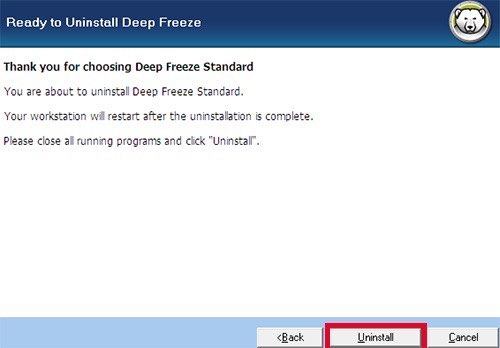
With the installation file running, cull Uninstall and proceed with the process. Your computer will be restarted one time more, and you can see the Deep Freeze is no more than.
That's all for how to remove Deep Freeze with or without password on Windows 10/8.ane/8/7. And if yous take trouble to recover lost Windows login countersign, hither we recommend Windows Password Key for your reference.
Recommended Production

- Reset/Remove Windows admin and other user password for local/domain account.
- Create a new local/domain admin account to unlock your computer.
- Change your Microsoft account password offline.
- Fully back up Windows 10/viii.i/8/7/Vista/XP, Windows Server 2012 (R2)/2008 (R2)/2003 (R2).
Free Download
- Related Articles
- Crack Laptop Password
- How to Reset Microsoft Account Password
- How to kick from USB Flash Drive in Windows
comments powered past
Source: https://www.4winkey.com/windows-tips/how-to-remove-deep-freeze-without-password-on-windows-10-8-1-8-7.html
Posted by: lloydevizint2002.blogspot.com
0 Response to "How To Uninstall Deep Freeze In Windows 10"
Post a Comment